Settings Tab (WooCommerce)
You can use the Settings tab to confure how ePAL interacts with your tax settings in WooCommerce
To open this UI, go to . The following UI is displayed:
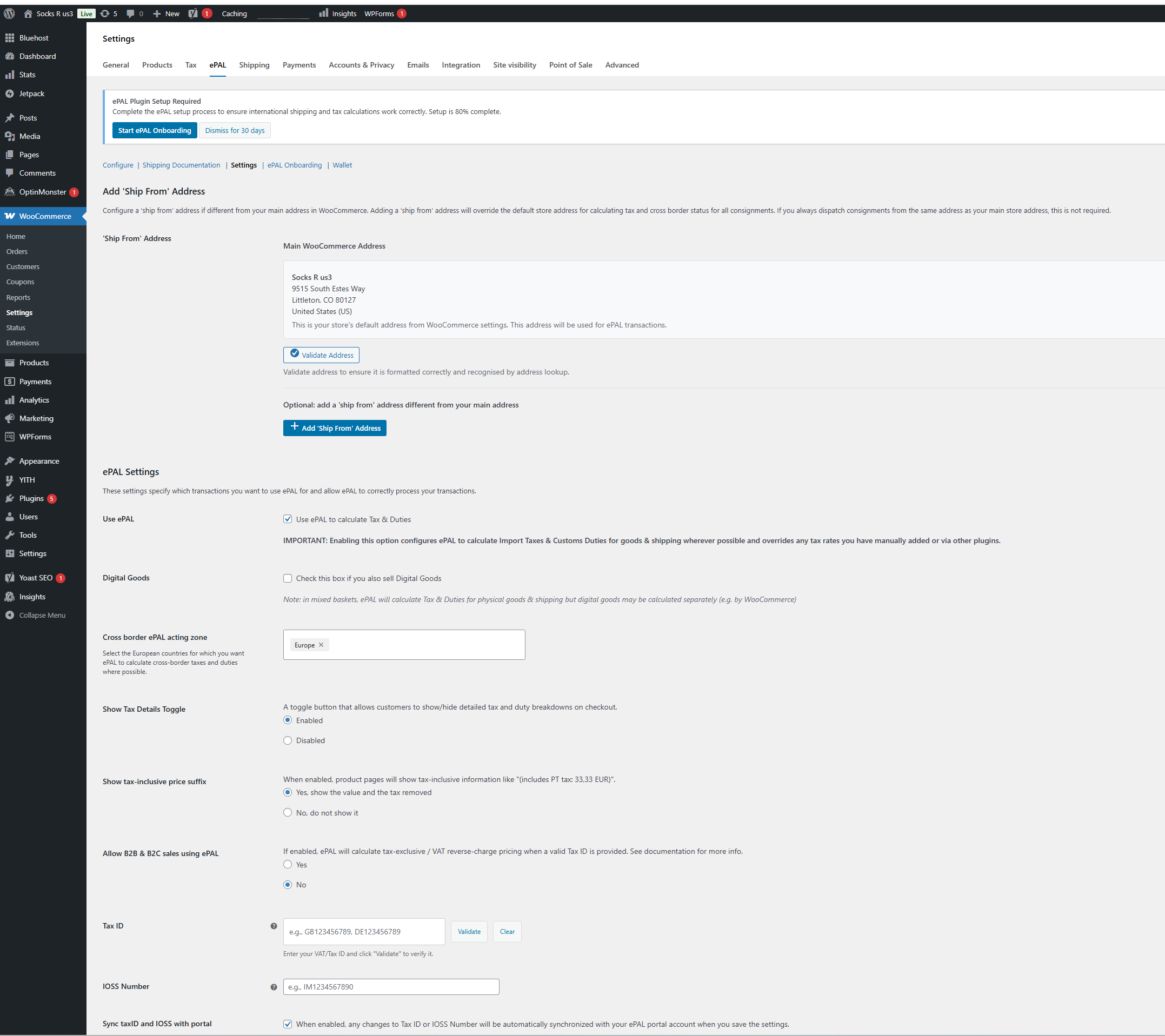
- Add Ship From Address: If you want to use a custom Ship From Address, you can add it here. This can also be set in step 4 of the guided installation. See Creating a Custom Ship From Address (WooCommerce)
- ePAL Settings: This section of the UI collects all the relevant ePAL settings that you initially set in step 3 of the guided installation.
ePAL Settings
This section contains the ePAL settings. It contains the following fields:
| Field | Description |
|---|---|
| Mandatory Fields | |
| Use ePAL |
CAUTION:
Enabling this setting
permits ePAL to change your tax and shipping totals wherever
applicable. To enable ePAL and permit it to process your transactions, you need to select this checkbox |
| Digital Goods | If you sell digital goods, select this checkbox. ePAL is not used for these goods. This setting helps it process mixed baskets. |
| Cross border ePAL acting zone | This setting governs the countries in which ePAL is enabled. To specify for all of Europe, choose Europe or you can enter individual countries and regions. |
| Show Tax Details Toggle |
Use this setting to enable or remove the Show Tax Details toggle on your checkout. Customers can use this to get more information about the taxes and duties that ePAL helps calculate. For more information, see Store and Checkout Integration (WooCommerce) |
| Show tax-inclusive price suffix |
When enabled, information about tax is displayed in the suffix of tax inclusive prices. For more information, see Store and Checkout Integration (WooCommerce) |
| Optional Fields | |
| Allow B2B & B2C sales using ePAL |
If you want to use ePAL for B2B transactions, click Yes. For more information, see B2B and Tax ID Validation (WooCommerce). |
| VAT Reverse Charge | A VAT reverse charged can be applied for B2B transactions. You can choose whether this should apply only in the EU, between EU-based businesses or the entire world. For more information, see B2B and Tax ID Validation (WooCommerce). |
| Tax ID | You can specify your Tax ID. For example, your VAT ID. This is used for validation of B2B transactions. For more information, see B2B and Tax ID Validation (WooCommerce). |
| IOSS Number | Specify your IOSS number, if applicable. For more information, see Import One Stop Shop (IOSS) (WooCommerce). |
| Sync taxid and IOSS with portal |
If you click Yes, changes made to your Tax ID or IOSS number in Woo Commerce or on the ePAL portal are synchronized so both use the updated information. If you click No, changes are not synchronized. For more information about the Portal, see ePAL Portal User Guide |