Adding ePAL as a Shipping Method (WooCommerce)
You must add ePAL to your shipping methods.
Generally, you configure this during step 4 of the guided installation.
You may also want to add ePAL to a new shipping method that you added after you complete the guided installation.
Steps
- Open the WooCommerce Admin Panel. Click .
The following UI is displayed:
Figure 1. Shipping Method Settings 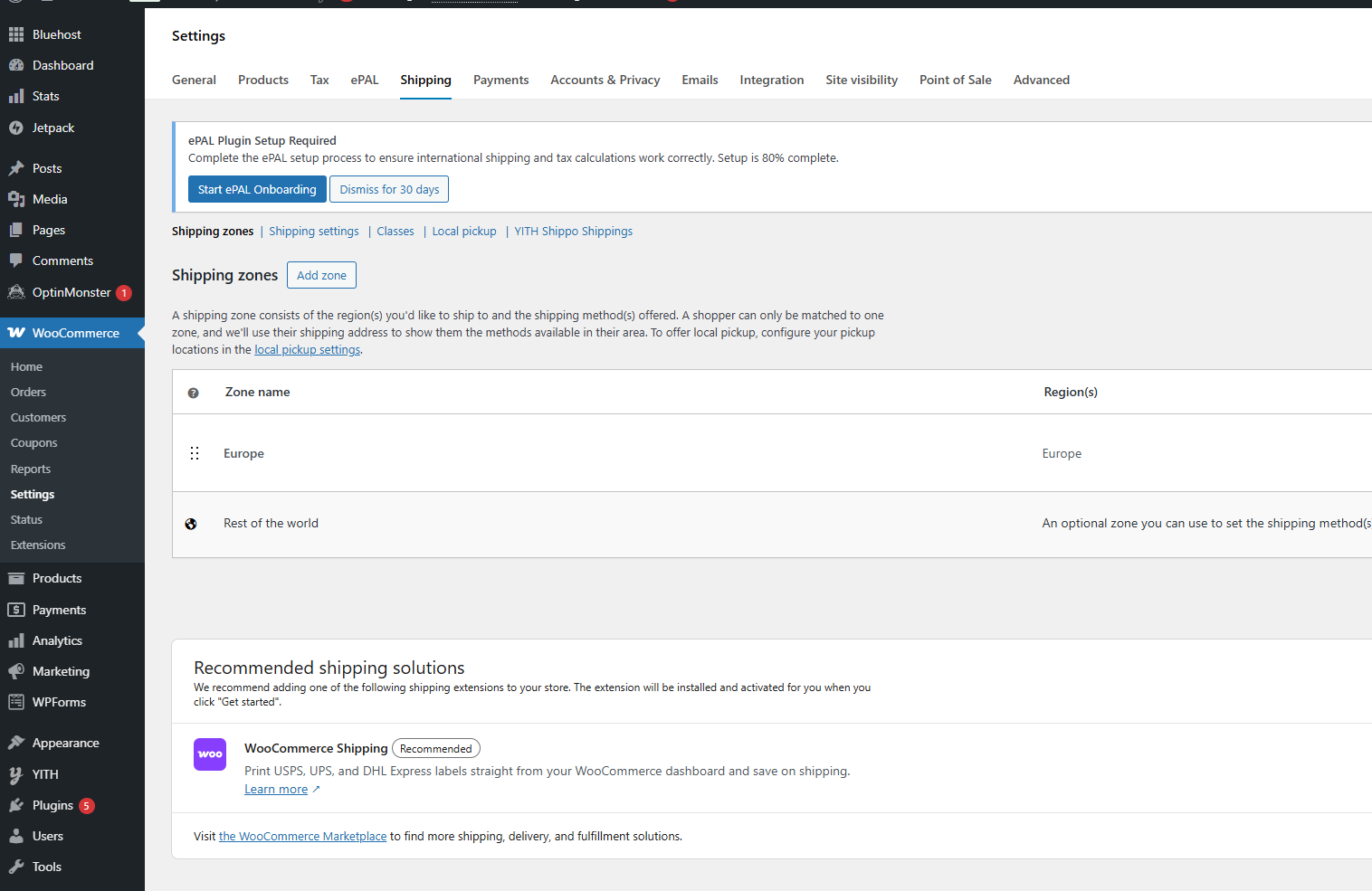
- Add a new shipping method or edit an existing one. Repeat this for all the
zones where you want to operate ePAL.
If you are adding a zone, click Add shipping method.
If you are editing an existing zone, click Edit.
- Complete the Setup UI.
Table 1. Setting Description Enable ePAL Shipping You must select this checkbox to enable ePAL for the shipping method. Method Title You can specify a name for this shipping method. API Timeout You can specify the time that can elapse before the API requests are timed out. Cache Duration You can specify the Debug Mode To enable debugging, select this checkbox. - Click Create and save.The following UI is displayed:
Figure 2. ePAL Shipping Method UI 