Classifying a Single Product
Use this process to classify a single product.
Warning:
The results here are based on non-deterministic
logic. The Product Classification feature is intended to provide you with information
that you are responsible for verifying the correctness for your purposes. ePAL accepts
no liability for incorrect results.
Steps
To classify a single product, complete the following steps:
- Open the ePAL portal at ePAL Portal.
- To open the Product Classification UI, click Product
Classification in the side panel. The following UI is displayed:
Figure 1. Product Classification UI 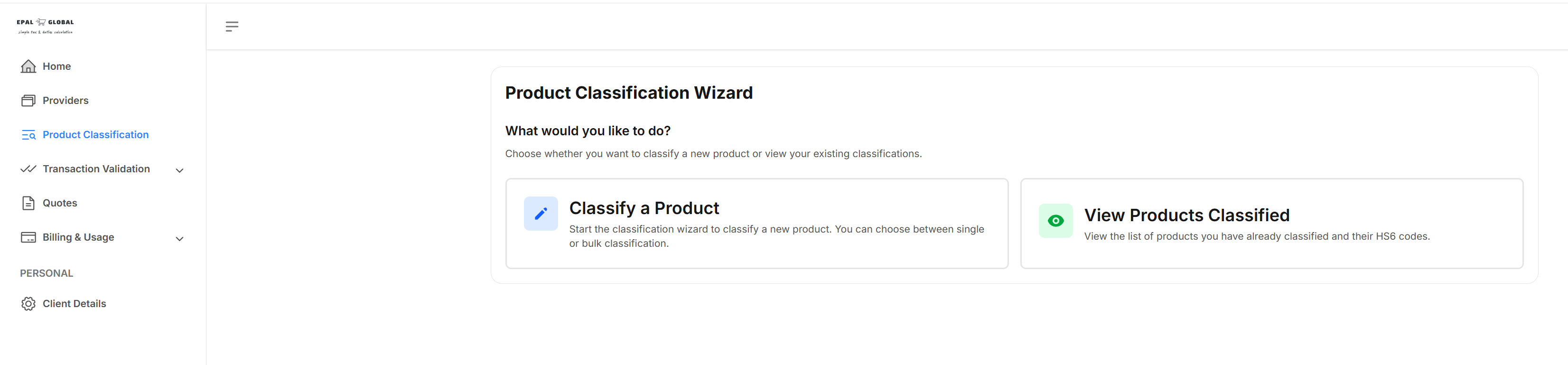
- Click Classify a Product. The following UI is displayed:
Figure 2. Product Classification Wizard Step 2 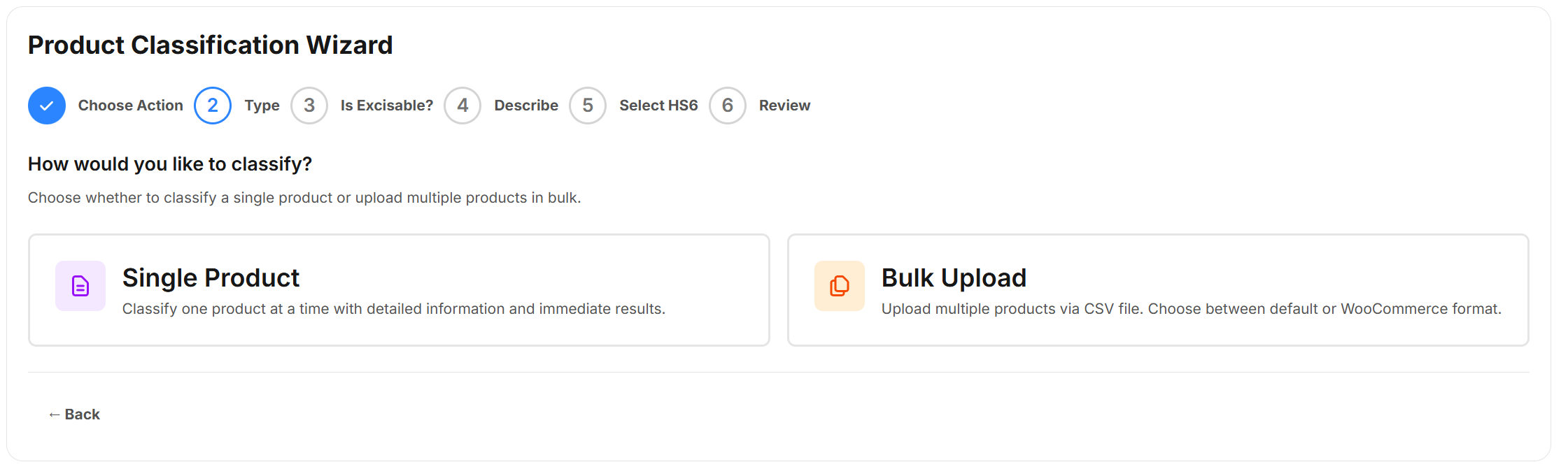
- Click Single Product. . The following UI is displayed:
Figure 3. Product Classification Wizard Step 3 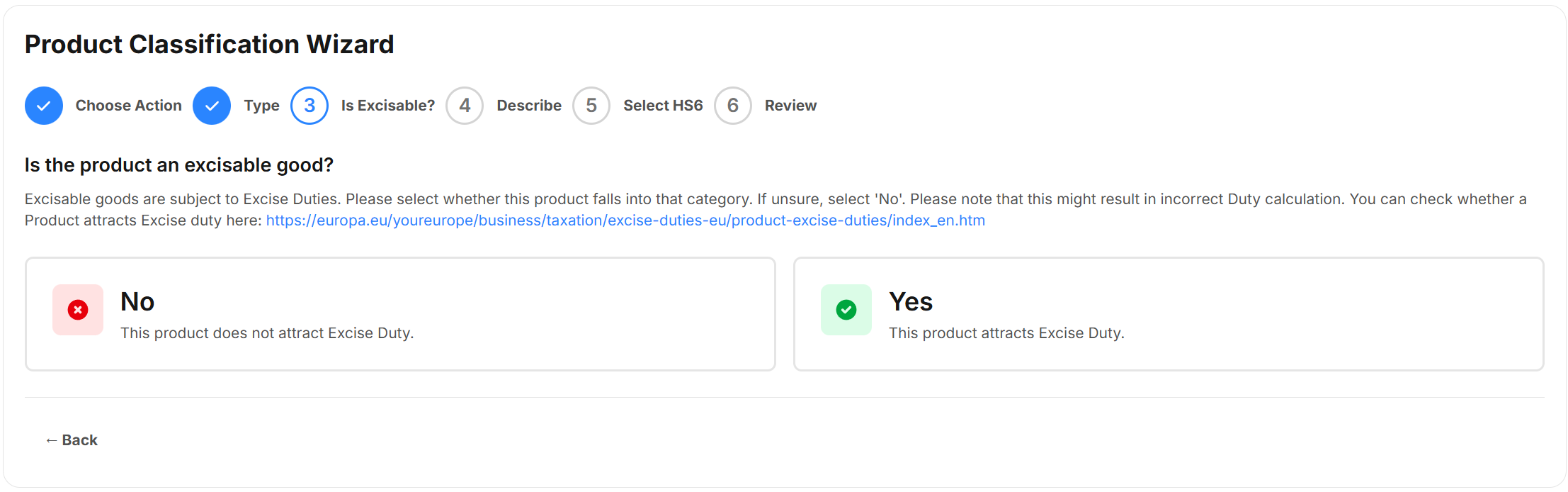
- You need to specify if excise duty applies to the good.
If the goods are excisable, click Yes. The following UI is displayed where you need to enter details about the product:
Figure 4. Product Dimensions UI 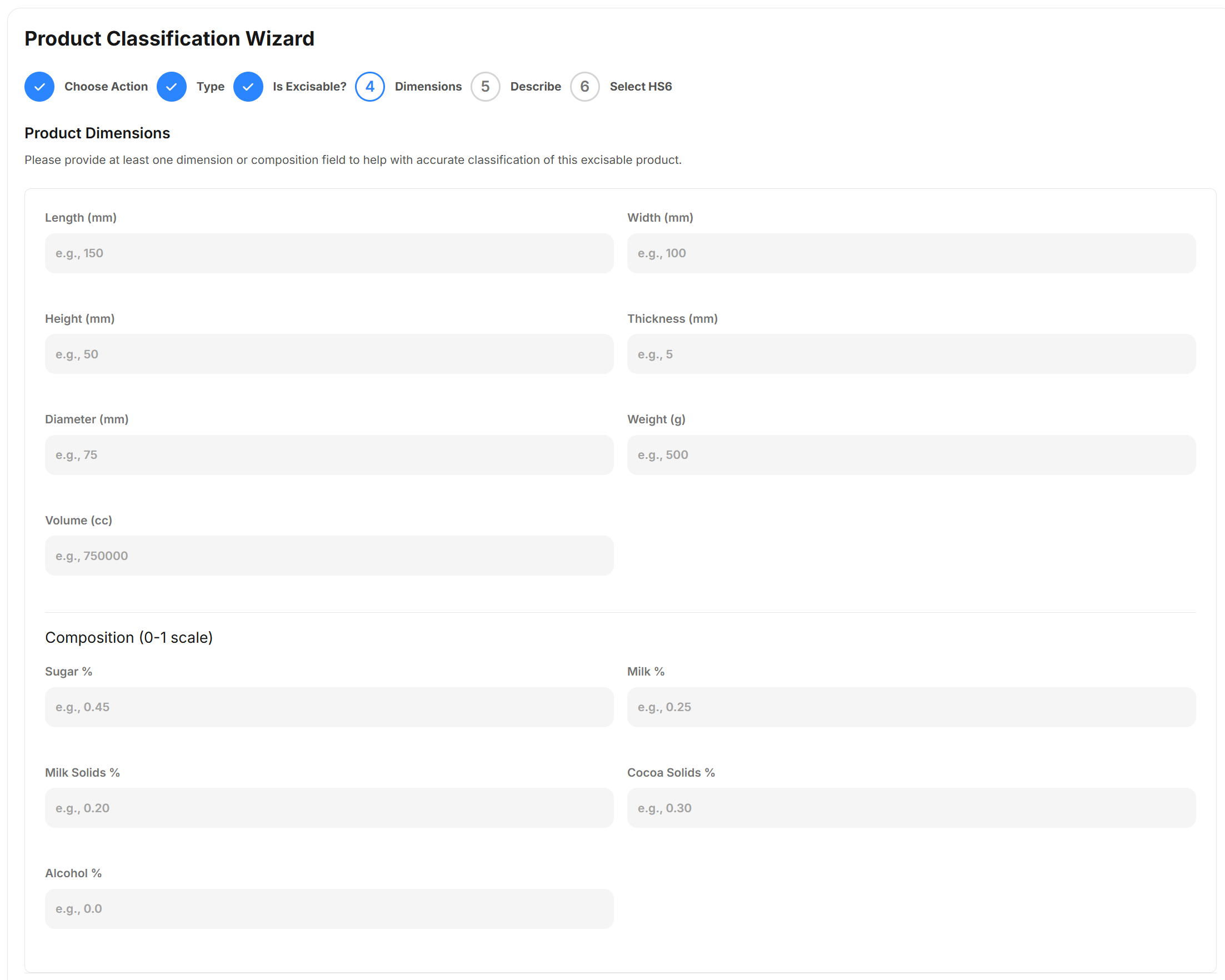 This UI contains the following fields:
Table 1. Product Dimensions Fields Field Unit of Measure Description Product Dimensions Specify values for the dimensions of the product. Length Width Height Thickness Diameter Weight Volume Composition Specify value for the composition of the product. Use decimals. For example, you specify 0.25 to represent 25%. Sugar Percentage of total Specify the amount of the good that is sugar. Milk Percentage of total Specify the amount of the good that is milk. Milk Solids Percentage of total Specify the amount of the good that is a milk solid. Cocoa Solids Percentage of total Specify the amount of the good that is a cocoa solid. Alcohol Percentage of total Specify the amount of the good that is alcohol. If the goods are not excisable, click No. The following UI is displayed:
Figure 5. Product Classification Wizard Step 4 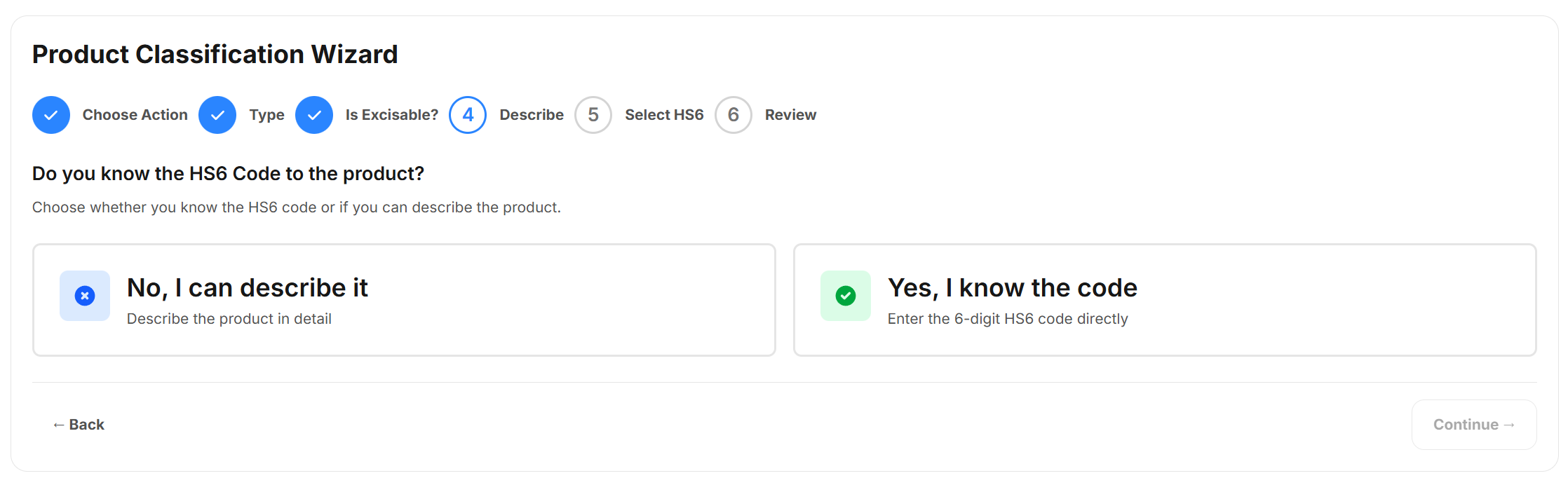
- If know the HS6 code of the good already, click Yes, I know the
code and enter the code.
If you do not know the code, click No, I can describe it to enter a description. The following UI is displayed:
ePAL will return what it thinks may match you description. ePAL will return a list of matches and you can choose one that might be correct
- ePAL will return what it thinks may match you description. ePAL will return a
list of matches and you can choose one that might be correct. For example:
Figure 6. Classification Results List UI 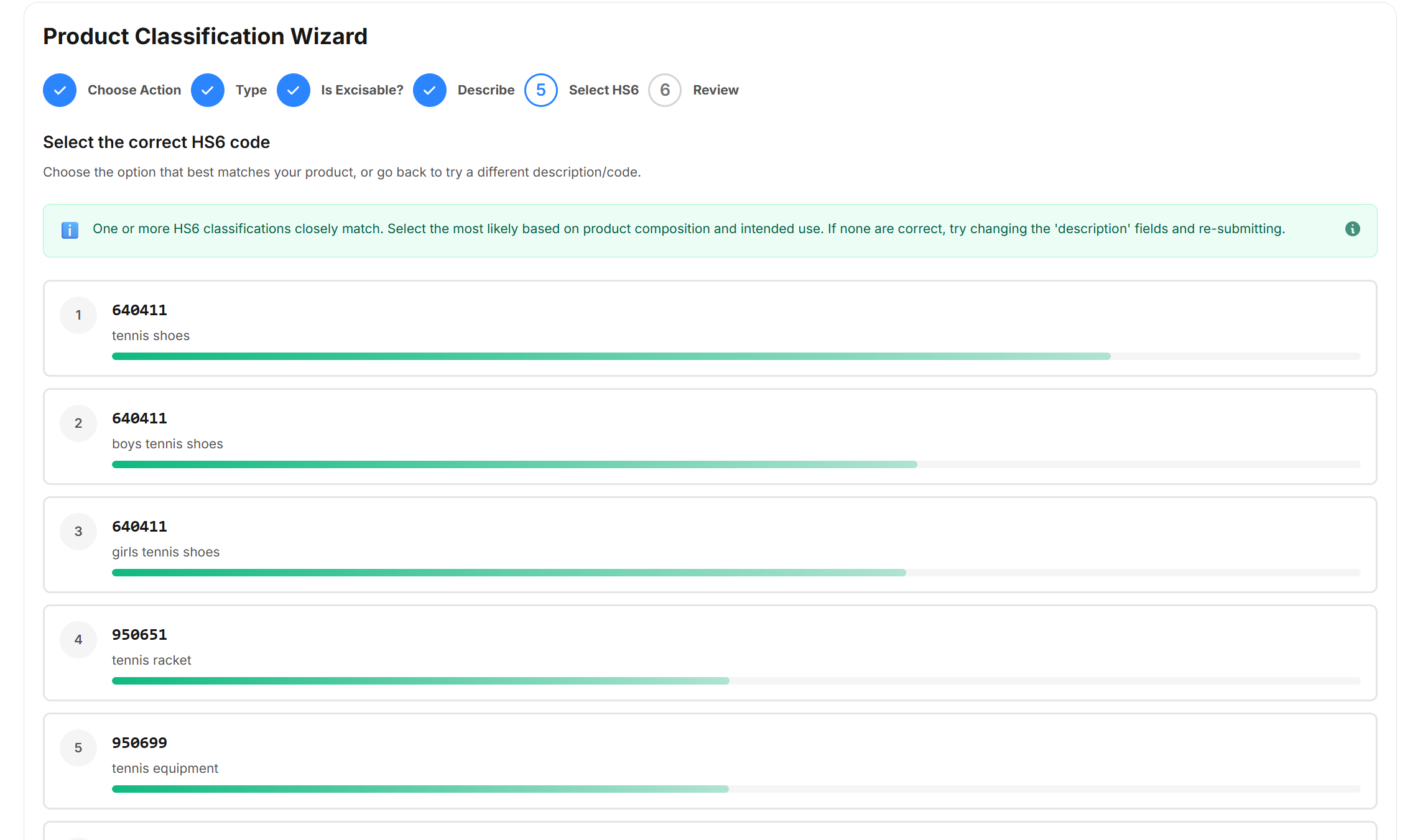
- Select the appropriate code. The following UI is displayed where you can see the
HS6 code and the Taric description:
Figure 7. Single Product Classification Result 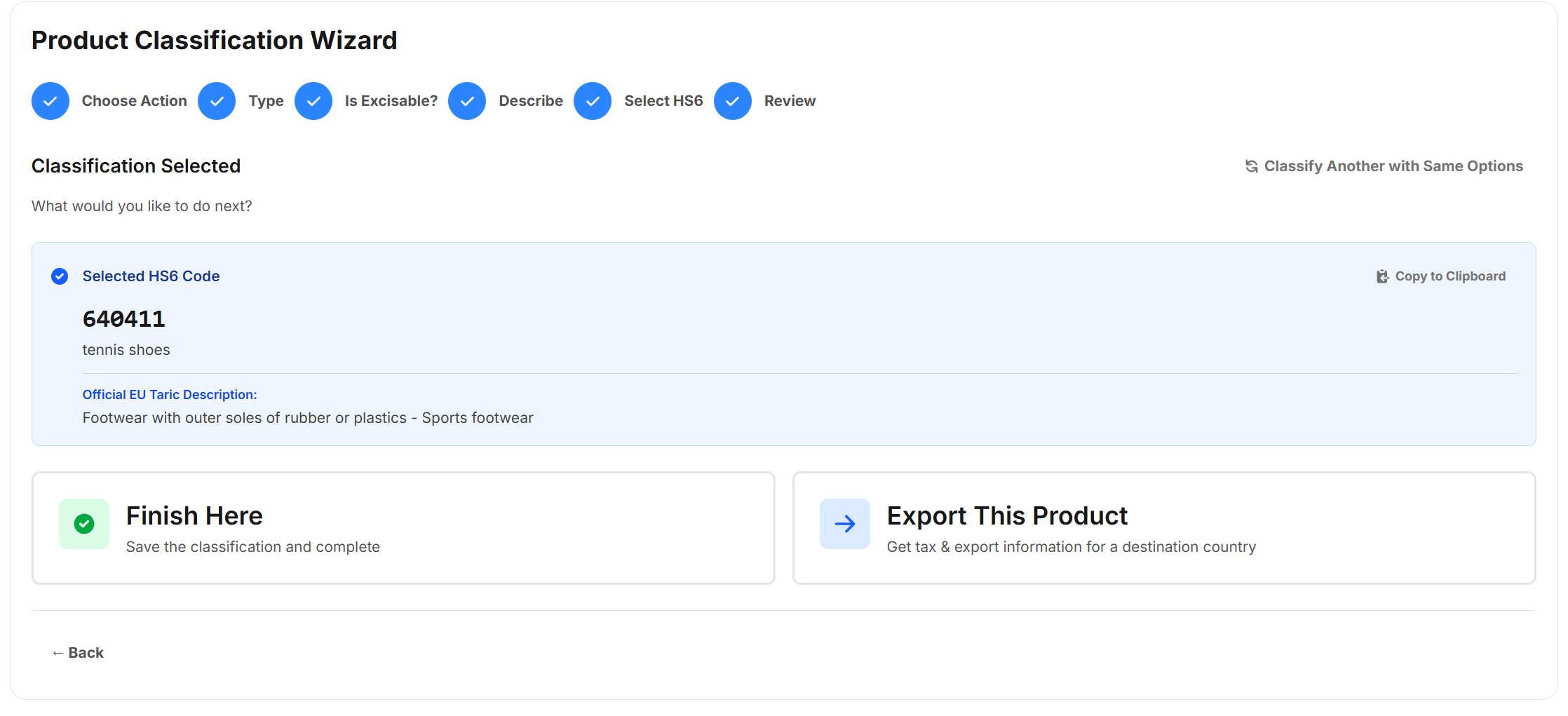
- You can copy the code to the clipboard and click Finish Here. Alternatively, you can export the product classification by clicking Export This Product.